

Portfolio Gallery Meta

The Portfolio Gallery Meta block acts as a dynamic data engine, pulling specific project details directly from your Portfolio Gallery Templates. Designed to work seamlessly within a Query Loop or a Single Portfolio Gallery Template, this block ensures that every project displays its unique technical specifications automatically.
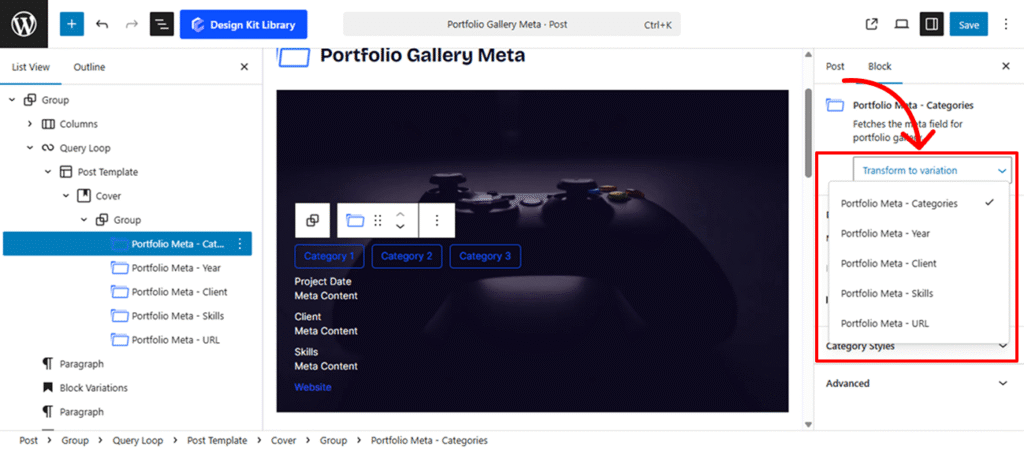
Block Variations
This block supports five distinct meta variations, which can be toggled or rearranged from the right-hand settings panel to provide a structured overview of your work:
- Categories: Displays the project types or genres assigned to the portfolio item.
- Year: Pulls the completion date or project timeline, perfect for showing the growth of your work over time.
- Clients: Dynamically fetches the name of the individual or company the project was created for.
- Skills: Lists the specific tools, languages, or expertise used.
- URL: Generates a direct link to the live project or an external case study.
Category Variation
The Category Styles panel allows you to transform project tags into distinct visual badges or “pills.”
- Spacing & Layout: Use H-Gap and V-Gap to control the distance between multiple tags, while Padding defines the internal space within each tag’s boundary.
- External Margins: Adjust Margin Top and Margin Bottom to separate the category group from other meta elements like the project year or client name.
- Shape & Border: Use the Border and Border Radius controls to create anything from sharp rectangular tags to fully rounded pills.
- Typography & Color: Set the font style and use the Color settings to define both the Text and the Background fill, ensuring your tags are eye-catching and legible.
Title Styles
This Panel is active for Portfolio Meta Year, Client, Skills.
- Vertical Spacing: Manage the Margin Top and Margin Bottom to control the vertical flow of information. This is particularly useful when stacking multiple meta fields (e.g., placing the “Year” directly under the “Client”).
- Typographic Control: The Typography settings allow you to define the font size, weight, and letter spacing specifically for these fields. You can make the “Skills” list slightly smaller or the “Client” name bold to create a clear hierarchy.
- Color (Text): Sets a single color for the meta content. This ensures that technical details remain readable without competing visually with the primary project title or description.
- Typography
Typography
- Font Family & Size: Select the typeface and scale that best matches your site’s design system.
- Font Weight: Control the thickness (e.g., Bold for emphasis or Light for a modern look).
- Letter Case: Force the labels to Uppercase, Lowercase, or Capitalize without editing the form code.
- Decoration: Apply styles like Underline or Line-through if needed for specific design cues.
- Line Height & Letter Spacing: Fine-tune the vertical breathing room and horizontal character density.