
Featured Product
Featured
View All
 Sale
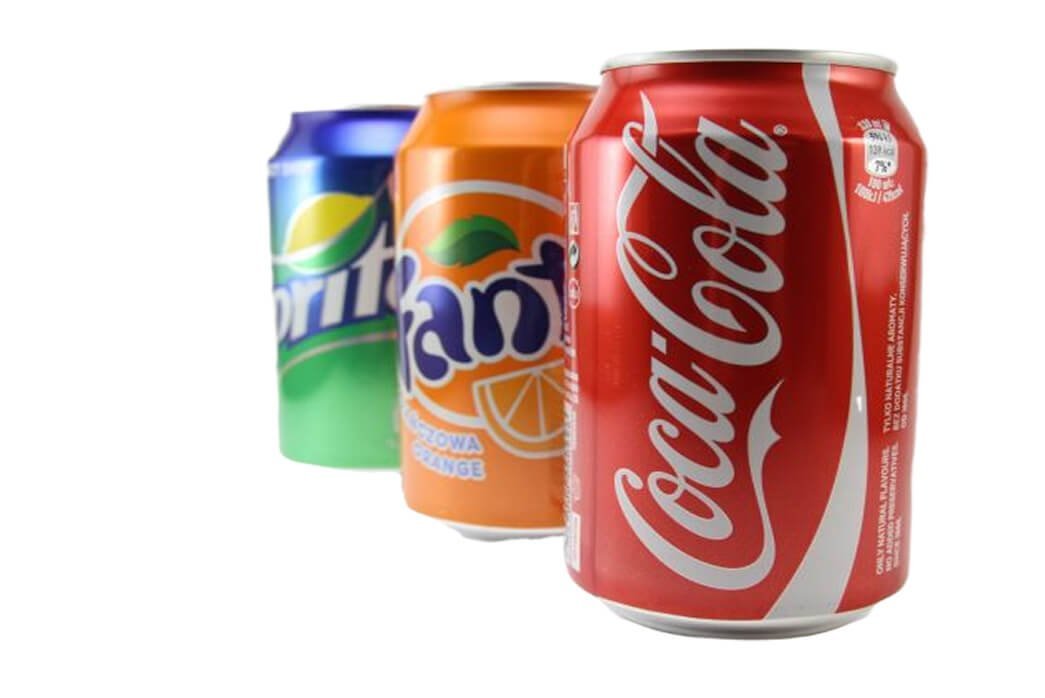
SaleCold Drinks
Original price was: ₨ 18.99.₨ 9.99Current price is: ₨ 9.99.
Beat the heat and stay refreshed with our deliciously chilled cold drinks, crafted to deliver the perfect burst of flavor…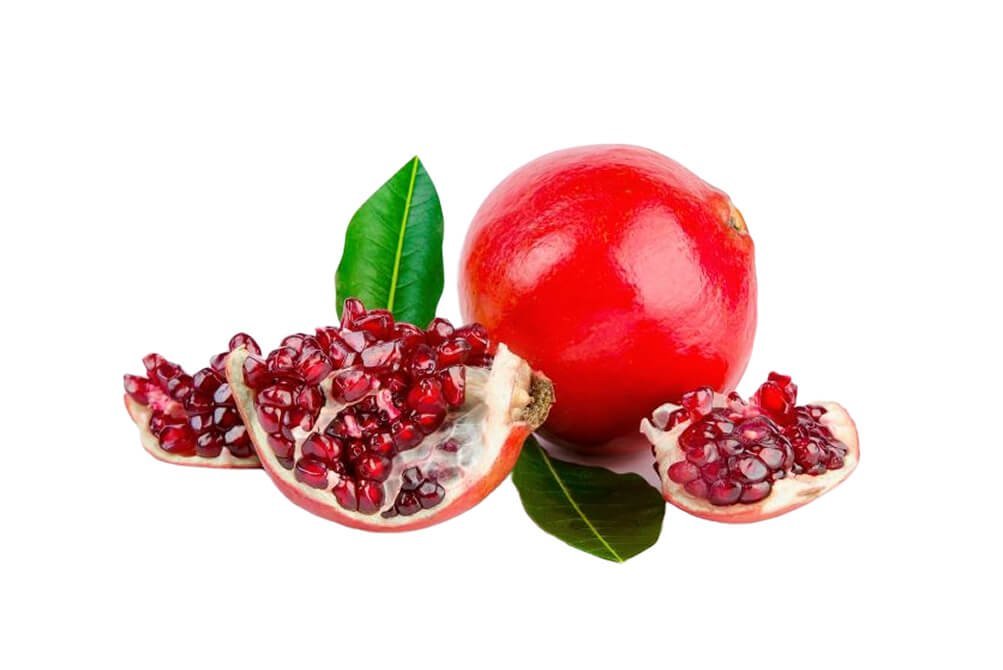 Sale
SaleFresh Pomegranate Juice
Original price was: ₨ 19.99.₨ 11.99Current price is: ₨ 11.99.
(5.0 out of 1 review.)Experience the refreshing taste and health benefits of 100% pure pomegranate juice, freshly extracted from premium-quality pomegranates to deliver a…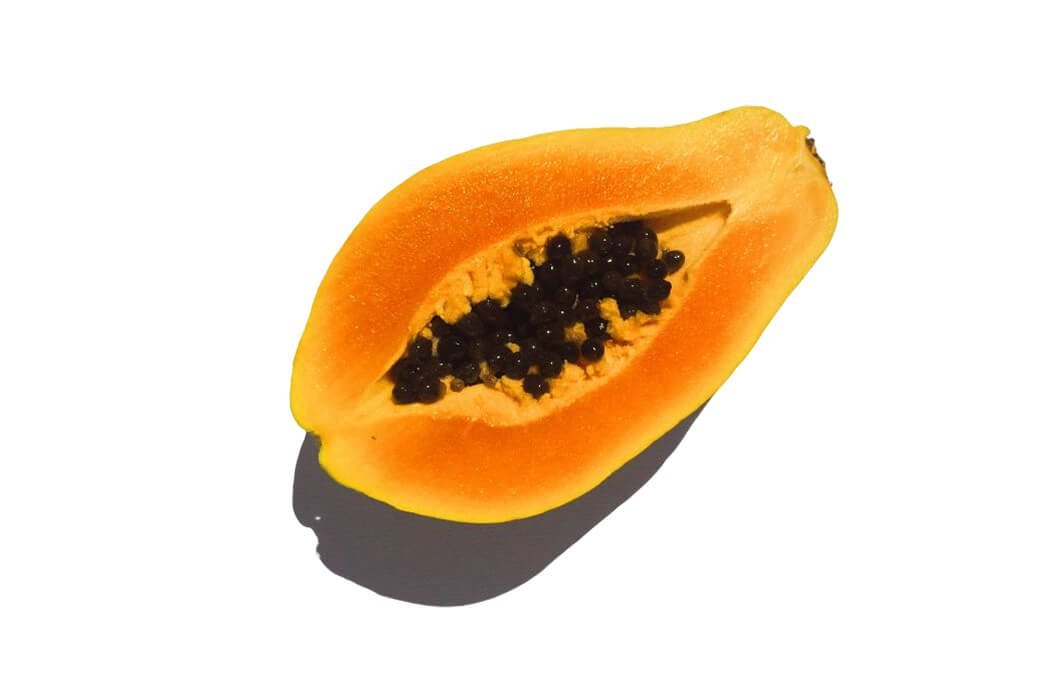 Sale
SaleFresh Papaya Juice
Original price was: ₨ 27.99.₨ 12.99Current price is: ₨ 12.99.
(5.0 out of 1 review.)Indulge in the tropical delight of 100% fresh papaya juice, bursting with natural sweetness and loaded with essential nutrients. Made…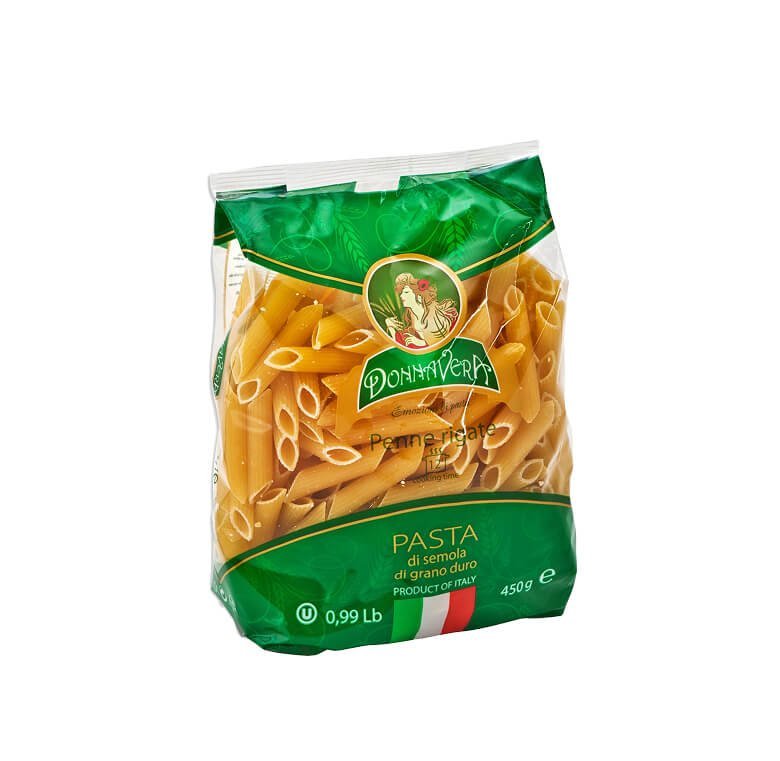 Sale
SalePenne Pasta
Original price was: .Current price is: .
Enjoy the authentic taste and perfect texture of our high-quality Penne Pasta, crafted from the finest durum wheat for a…
The Featured Product block is a dynamic showcase tool designed to highlight specific items from your inventory with precision and style. By allowing you to handpick selections from your latest arrivals or top-sellers, it transforms standard product listings into high-impact visual features. Whether you want to present a curated collection in a clean, structured Grid or an interactive, space-saving Carousel, this block provides the versatility needed to adapt to any page layout while significantly boosting user engagement.
Settings ⚙
General
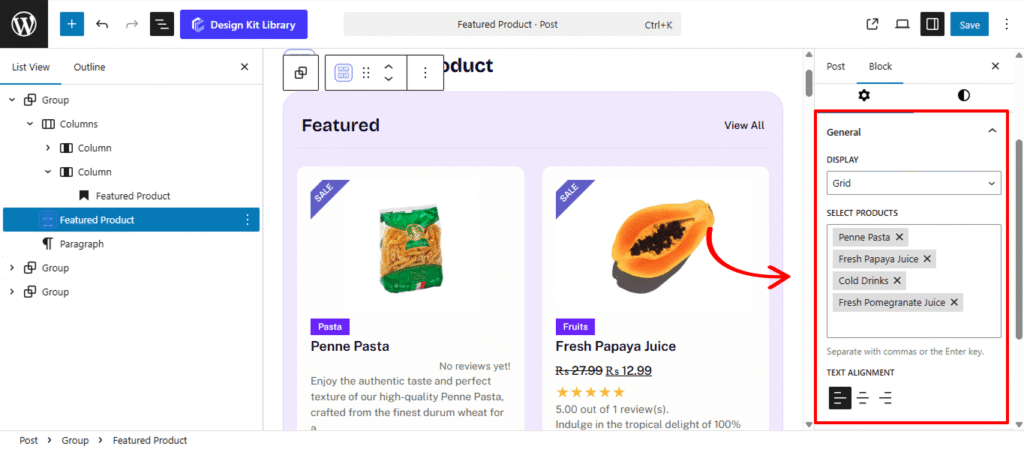
- Display: Select the primary organizational framework for your products.
- Grid: Arranges products in a stable, multi-column format. This is the standard choice for “Shop” pages or detailed product catalogs where structure is key.
- Carousel: Converts the product list into a horizontal, touch-ready slider. This is perfect for homepages where you want to showcase multiple items without taking up excessive vertical space.
Query Option
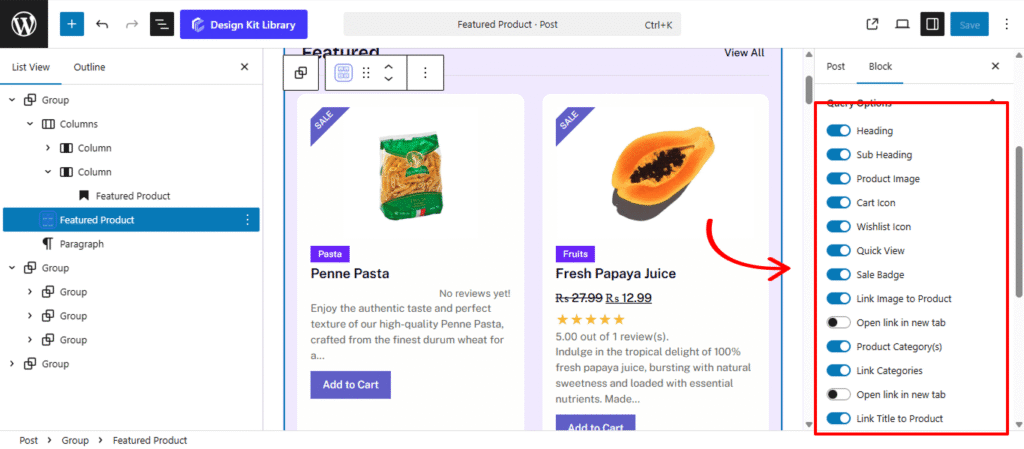
The Query Options Panel serves as the visibility engine for the Featured Product Block. It allows you to toggle and fine-tune every individual element within the product card, giving you total control over the information hierarchy. Whether you want a minimalist look with just an image and price, or a feature-rich card for a high-conversion landing page, these toggles allow you to curate the perfect display.
- Heading & Sub Heading: Enable these to add custom titles or taglines directly above the product information.
- Link Image to Product: Turns the entire image into a clickable hotspot.
- Icons:
- Toggle the Cart Icon, Wishlist Icon, and Quick View buttons. These provide instant interaction points without requiring a full page load.
- Sale Badge: Automatically displays a visual “Sale” or “Discount” indicator for products with a reduced price.
- Link Categories: When active, users can click the category name to browse related items.
- Link Title to Product: Provides a direct, SEO-friendly link to the single product page.
- Product Rating: Showcases the star rating based on verified customer reviews.
- Product Price: Displays the current price, including strike-through pricing for items on sale.
- Product Summary & Excerpt: Choose between the full short description or a truncated snippet (excerpt) to maintain a uniform card height.
- Product Summary & Excerpt: Choose between the full short description or a truncated snippet (excerpt) to maintain a uniform card height.
- Add to Cart Button: Enable the primary call-to-action, allowing customers to move from “browsing” to “buying” with a single click.
Note: Each linkable element includes a dedicated “Open Link in New Tab” toggle, providing granular control over how shoppers navigate your store.
Header Options
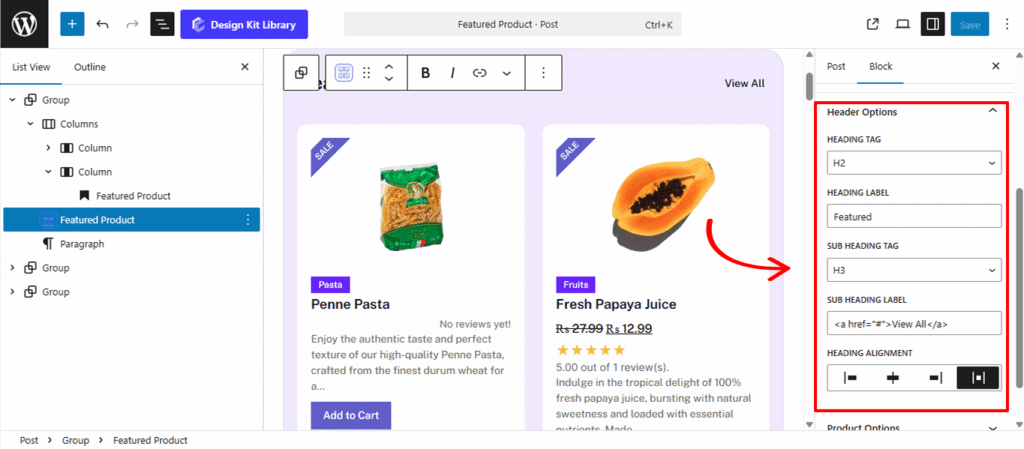
Based on the image of the editor interface, here are the documentation details for the Header Options panel within the Featured Product block:
- Heading Tag: Choose the appropriate HTML rank (from H1 to H6) for your main title. This ensures your “Featured” section is correctly indexed by search engines and maintains a proper document hierarchy.
- Heading Label: Enter the primary title for your block. Use this field to give your collection a name, such as “Best Sellers,” “New Arrivals,” or “Top Picks.”
- Sub Heading Tag: Select the HTML tag for your secondary text. This is typically used for taglines or supplementary links.
- Sub Heading Label: Enter the text or HTML for your sub-header. As shown in the example, this field supports anchor tags (e.g.,
<a href="#">View All</a>), allowing you to place a “View All” link directly beside your heading. - Heading Alignment: Control the horizontal placement of both the heading and sub-heading. You can choose between Left, Center, Right, or Justified layouts to match the rest of your page design.
Product Options
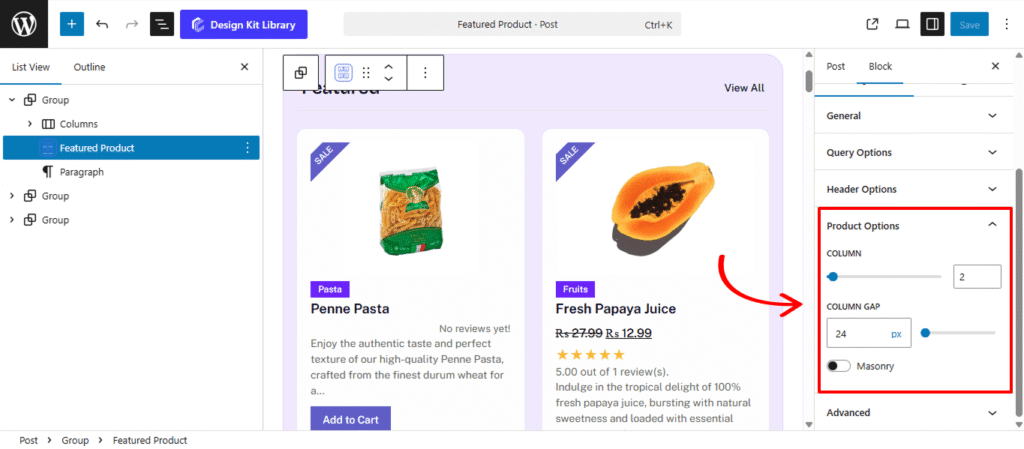
The Product Options panel controls the spatial arrangement and structural flow of your product cards. These settings allow you to transform a basic list into a professional, well-spaced gallery that adapts to your site’s layout requirements. This Panel is available only when the Display is set to Grid.
- Column: Define the number of products displayed in a single horizontal row. You can set different column counts for desktop, tablet, and mobile to ensure your featured items remain perfectly sized on every screen.
- Column Gap: Adjust the precise amount of white space between each product card. Increasing this gap creates a cleaner, more minimalist “breathable” look, while a smaller gap allows for more content density in high-inventory stores.
- Masonry: When enabled, this layout optimizes the vertical space between products of varying heights. Instead of forcing cards into rigid rows, Masonry shifts them upward to fill empty gaps, creating a dynamic, modern “Pinterest-style” grid that is perfect for products with varying image aspect ratios or description lengths.
Carousel Options
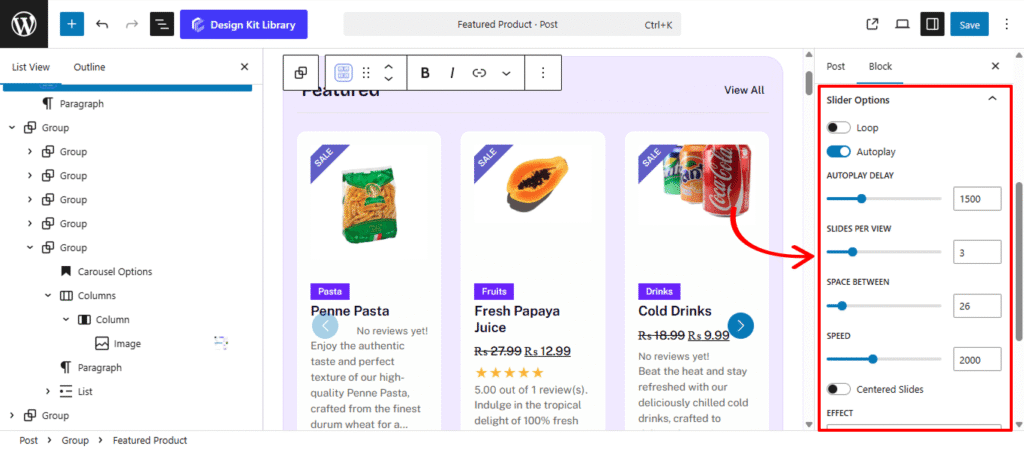
The Carousel Options panel provides the settings necessary to transform your featured product list into an interactive, sliding showcase. This display mode is ideal for presenting large collections without taking up excessive vertical space on your page. This Panel is available only when the Display is set to Carousel.
- Loop: Enable this to allow the carousel to wrap around indefinitely. Once the shopper reaches the last product, the slider seamlessly transitions back to the first.
- Autoplay: Activate this to have the products slide automatically. This is a great way to showcase a large inventory without requiring user interaction.
- Autoplay Delay: Set the duration (in milliseconds) that each product remains static before the next one slides into view.
- Slides Per View: Define how many products are visible in the slider at once.
- Space Between: Adjust the horizontal spacing between each product slide to prevent your layout from feeling cluttered.
- Speed: Control the transition velocity. A higher value creates a slow, cinematic glide, while a lower value makes for a snappy, high-energy transition.
- Centered Slides: Toggle this to keep the active product card positioned in the middle of the viewport. This is particularly effective for high-impact hero sliders where you want to draw the eye to a single featured item.
- Enable Pagination: Displays “dots” or “bullets” at the bottom of the carousel, providing a visual progress indicator for the shopper.
- Enable Navigation: Adds directional arrows to the left and right, allowing users to manually browse through your collections.
- Display on Hover: Use this to pause the Autoplay when a user moves their mouse over a specific product. This ensures they have plenty of time to view the details or click the “Add to Cart” button without the slide moving away.
Style ◑
Pagination Styles
The Pagination Styles settings is active when layout is Carousel and Pagination is enabled, this allow you to refine the appearance and interactive behavior of the navigation indicators (dots or numbers) for your Carousel. These controls ensure the pagination is both functional and visually aligned with your brand’s UI.
- Vertical Positioning: Fine-tune the vertical offset to control how far the pagination sits below the carousel content.
- Gap: Adjust the specific spacing between each individual pagination dot to ensure they are distinct and easy to click.
- Align: Set the horizontal placement of the indicators. Toggle between Left, Center, or Right to balance the layout against your team member cards.
- Default / Active (Toggle)
- Default:
- Width & Height: Define the base size of the inactive indicators.
- Border Radius: Control the shape, from sharp squares to perfect circles.
- Active:
- Width & Height: Increase these values to make the active slide indicator physically larger or longer (e.g., a “pill” shape) for better visibility.
- Border & Border Offset: Add an outline to the active dot and use the offset to create a “halo” effect (spacing between the dot and its border).
- Border Radius: Independently adjust the curvature of the active indicator.
- Default:
- Color:
- Default: The color of inactive indicators.
- Default Hover: The color shift when a user moves their cursor over an inactive dot.
- Active: The primary color for the dot representing the current slide.
- Active Default: The color of the active dot when hovered.
- Active Border: The specific color of the stroke surrounding the active indicator.
Style ◑
Pagination Styles
The Pagination Styles settings is active when layout is Carousel and Pagination is enabled, this allow you to refine the appearance and interactive behavior of the navigation indicators (dots or numbers) for your Carousel. These controls ensure the pagination is both functional and visually aligned with your brand’s UI.
- Vertical Positioning: Fine-tune the vertical offset to control how far the pagination sits below the carousel content.
- Gap: Adjust the specific spacing between each individual pagination dot to ensure they are distinct and easy to click.
- Align: Set the horizontal placement of the indicators. Toggle between Left, Center, or Right to balance the layout against your team member cards.
- Default / Active (Toggle)
- Default:
- Width & Height: Define the base size of the inactive indicators.
- Border Radius: Control the shape, from sharp squares to perfect circles.
- Active:
- Width & Height: Increase these values to make the active slide indicator physically larger or longer (e.g., a “pill” shape) for better visibility.
- Border & Border Offset: Add an outline to the active dot and use the offset to create a “halo” effect (spacing between the dot and its border).
- Border Radius: Independently adjust the curvature of the active indicator.
- Default:
- Color:
- Default: The color of inactive indicators.
- Default Hover: The color shift when a user moves their cursor over an inactive dot.
- Active: The primary color for the dot representing the current slide.
- Active Default: The color of the active dot when hovered.
- Active Border: The specific color of the stroke surrounding the active indicator.
Style ◑
Pagination Styles
The Pagination Styles settings is active when layout is Carousel and Pagination is enabled, this allow you to refine the appearance and interactive behavior of the navigation indicators (dots or numbers) for your Carousel. These controls ensure the pagination is both functional and visually aligned with your brand’s UI.
- Vertical Positioning: Fine-tune the vertical offset to control how far the pagination sits below the carousel content.
- Gap: Adjust the specific spacing between each individual pagination dot to ensure they are distinct and easy to click.
- Align: Set the horizontal placement of the indicators. Toggle between Left, Center, or Right to balance the layout against your team member cards.
- Default / Active (Toggle)
- Default:
- Width & Height: Define the base size of the inactive indicators.
- Border Radius: Control the shape, from sharp squares to perfect circles.
- Active:
- Width & Height: Increase these values to make the active slide indicator physically larger or longer (e.g., a “pill” shape) for better visibility.
- Border & Border Offset: Add an outline to the active dot and use the offset to create a “halo” effect (spacing between the dot and its border).
- Border Radius: Independently adjust the curvature of the active indicator.
- Default:
- Color:
- Default: The color of inactive indicators.
- Default Hover: The color shift when a user moves their cursor over an inactive dot.
- Active: The primary color for the dot representing the current slide.
- Active Default: The color of the active dot when hovered.
- Active Border: The specific color of the stroke surrounding the active indicator.
Navigation Styles
- Icon Size: Independently scale the arrow icon within its box. You can create a “minimalist small arrow in a large box” or a “bold arrow that fills the frame.”
- Box Width & Height: Define the clickable area surrounding the navigation arrows. Creating a larger box ensures your gallery is touch-friendly and easy to navigate on mobile devices.
- Border: Add a structural outline to your navigation boxes. This is ideal for “Ghost Button” styles where the background is transparent.
- Border Radius: Use the slider to transition from sharp, modern squares to soft, classic circles.
- Color
- Icon & Icon Hover: Set the color of the arrow itself. Providing a high-contrast hover color gives the user immediate tactile feedback.
- Background & Background Hover: Control the fill color of the navigation box.
Sale Badge Style
The Sale Badge Styles panel provides the aesthetic toolkit to transform a standard “On Sale” notice into a high-conversion visual element. These controls allow you to define the shape, orientation, and “pop” of your discount indicators, ensuring they grab the shopper’s attention without clashing with your product photography.
- Padding: Adjust the internal space within the badge. Increasing the padding creates a larger, more button-like “pill,” while tighter padding keeps the badge compact and minimalist.
- Border Type: Choose from Solid, Dashed, Dotted or more outlines to add a stylistic frame around your discount text.
- Border Width: Enter the border width.
- Border Color: Select the border color.
- Border Radius: Control the curvature of the badge corners. A value of 0px creates a sharp, modern rectangle, while a high value (like 50px) creates a friendly, rounded “capsule” shape.
- Vertical & Horizontal Positioning: Use these granular offsets to “pin” the badge to specific areas of the product image. You can tuck it into the top-right corner or center it along the bottom edge for a unique look.
- Rotate: Add a touch of personality by tilting the badge (e.g., a -15° or 10° angle). This “sticker” effect is a proven way to draw the eye toward promotional offers.
- Rotate: Add a touch of personality by tilting the badge (e.g., a -15° or 10° angle). This “sticker” effect is a proven way to draw the eye toward promotional offers.
- Typography
- Font Family & Size: Select the typeface and scale that best matches your site’s design system.
- Font Weight: Control the thickness (e.g., Bold for emphasis or Light for a modern look).
- Letter Case: Force the labels to Uppercase, Lowercase, or Capitalize without editing the form code.
- Decoration: Apply styles like Underline or Line-through if needed for specific design cues.
- Line Height & Letter Spacing: Fine-tune the vertical breathing room and horizontal character density.
- Color
- Text Color: Set the color for your “Sale” text or discount percentage. High-contrast colors (like white text on a dark background) are recommended for readability.
- Background Color: Apply a vibrant fill to the badge. Using a signature “Action” color—like a bright red, orange, or your brand’s primary accent—ensures that customers never miss a deal while browsing your grid or carousel.