Product Grid/Carosuel
Settings ⚙
General
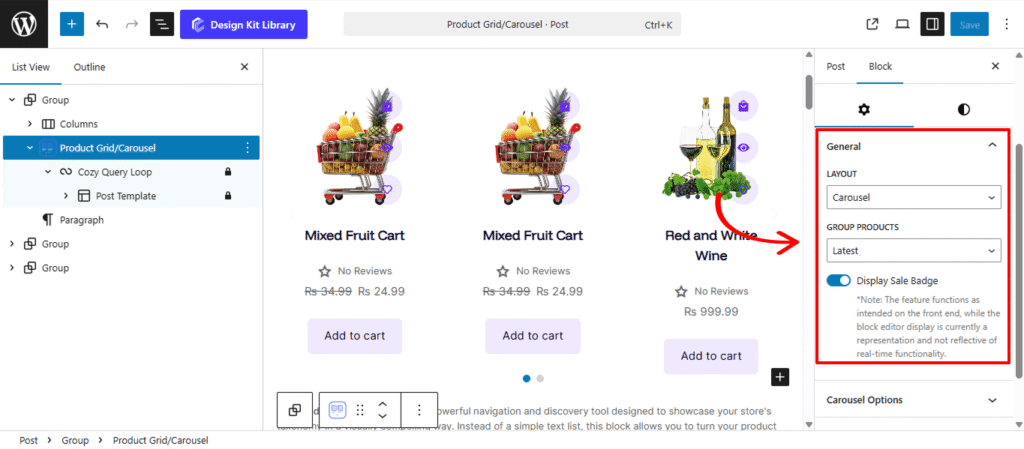
- Layout: Select the primary organizational framework for your products.
- Grid: Arranges products in a stable, multi-column format. This is the standard choice for “Shop” pages or detailed product catalogs where structure is key.
- Display Column: Define how many product cards appear side-by-side. You can set unique column counts for Desktop, Tablet, and Mobile to ensure your store looks perfect on every device.
- Column Gap: Control the horizontal gutter between your product columns. Increasing this value creates a more “airy,” high-end boutique feel, while a smaller gap maximizes screen real estate.
- Carousel: Converts the product list into a horizontal, touch-ready slider. This is perfect for homepages where you want to showcase multiple items without taking up excessive vertical space.
- Latest: Automatically displays your most recently added inventory.
- Category: Filters the display to show items from a specific department or collection.
- Select Category: When the Group Product is set to Category, use this field to choose exactly which WooCommerce category should be displayed.
- Best Seller: Showcases your high-volume products based on historical sales data.
- Top Rated: Renders products that have received the highest star ratings from customer reviews.
- On Sale: Specifically pulls products that currently have a “Sale Price” active.
- Display Sale Badge: Enable this toggle to show a visual “Sale!” indicator on top of eligible product images. This is a critical conversion tool that immediately draws the eye to discounted items.
- Grid: Arranges products in a stable, multi-column format. This is the standard choice for “Shop” pages or detailed product catalogs where structure is key.
Carousel Options
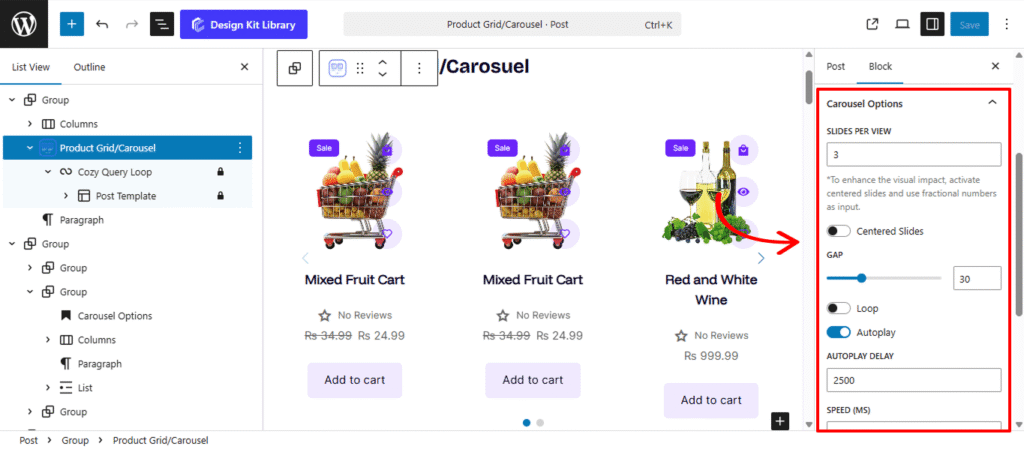
The Carousel Options Panel appears when the Layout is set to Carousel. These settings allow you to transform a static product list into an interactive, motion-driven experience. Since this block is often used for “New Arrivals” or “Recommended for You” sections, these controls ensure the slider feels smooth and professional on both desktop and mobile devices.
- Slides Per View: Define how many products are visible in the slider at once.
- Centered Slides: Toggle this to keep the active product card positioned in the middle of the viewport. This is particularly effective for high-impact hero sliders where you want to draw the eye to a single featured item.
- Gap: Adjust the horizontal spacing between each product slide to prevent your layout from feeling cluttered.
- Loop: Enable this to allow the carousel to wrap around indefinitely. Once the shopper reaches the last product, the slider seamlessly transitions back to the first.
- Autoplay: Activate this to have the products slide automatically. This is a great way to showcase a large inventory without requiring user interaction.
- Autoplay Delay: Set the duration (in milliseconds) that each product remains static before the next one slides into view.
- Speed: Control the transition velocity. A higher value creates a slow, cinematic glide, while a lower value makes for a snappy, high-energy transition.
- Enable Pagination: Displays “dots” or “bullets” at the bottom of the carousel, providing a visual progress indicator for the shopper.
- Enable Navigation: Adds directional arrows to the left and right, allowing users to manually browse through your collections.
- Display on Hover: Use this to pause the Autoplay when a user moves their mouse over a specific product. This ensures they have plenty of time to view the details or click the “Add to Cart” button without the slide moving away.
Sale Badge Options
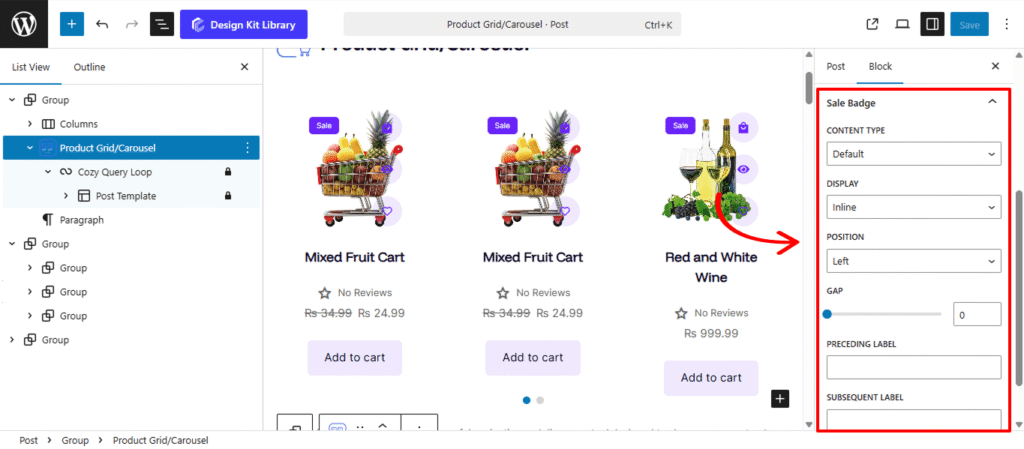
The Sale Badge Panel provides the conversion-focused settings for your discounted products. This component is a critical visual anchor that alerts shoppers to special offers, and these settings allow you to choose between a simple text notification or a data-driven savings indicator.
- Content Type: Define what information is displayed inside the badge to best motivate your customers.
- Default: Displays a standard “Sale” or custom text string.
- Discount Amount: Automatically calculates and shows the exact currency value saved (e.g., “$10 Off”).
- Discount Percentage: Showcases the percentage reduction (e.g., “25% Off”), which is often the most effective way to highlight high-value deals.
- Display: Choose between Inline (keeps the badge on the same line as other elements) or Block (gives the badge its own dedicated line for maximum visibility).
- Position: Anchor the badge to the Left or Right of the product image or title, allowing you to balance the visual weight of your product cards.
- Gap: Adjust the spacing between the Sale Badge and adjacent elements to prevent a cluttered “busy” look.
- Preceding Label: Add a prefix like “Save” or “Huge” (e.g., Save 20%).
- Subsequent Label: Add a suffix like “Off” or “Today Only” (e.g., 15% Off).
Style ◑
Pagination Styles
The Pagination Styles settings is active when layout is Carousel and Pagination is enabled, this allow you to refine the appearance and interactive behavior of the navigation indicators (dots or numbers) for your Carousel. These controls ensure the pagination is both functional and visually aligned with your brand’s UI.
- Vertical Positioning: Fine-tune the vertical offset to control how far the pagination sits below the carousel content.
- Gap: Adjust the specific spacing between each individual pagination dot to ensure they are distinct and easy to click.
- Align: Set the horizontal placement of the indicators. Toggle between Left, Center, or Right to balance the layout against your team member cards.
- Default / Active (Toggle)
- Default:
- Width & Height: Define the base size of the inactive indicators.
- Border Radius: Control the shape, from sharp squares to perfect circles.
- Active:
- Width & Height: Increase these values to make the active slide indicator physically larger or longer (e.g., a “pill” shape) for better visibility.
- Border & Border Offset: Add an outline to the active dot and use the offset to create a “halo” effect (spacing between the dot and its border).
- Border Radius: Independently adjust the curvature of the active indicator.
- Default:
- Color:
- Default: The color of inactive indicators.
- Default Hover: The color shift when a user moves their cursor over an inactive dot.
- Active: The primary color for the dot representing the current slide.
- Active Default: The color of the active dot when hovered.
- Active Border: The specific color of the stroke surrounding the active indicator.
Sale Badge Styles
The Sale Badge Styles panel provides the aesthetic toolkit to transform a standard “On Sale” notice into a high-conversion visual element. These controls allow you to define the shape, orientation, and “pop” of your discount indicators, ensuring they grab the shopper’s attention without clashing with your product photography.
- Padding: Adjust the internal space within the badge. Increasing the padding creates a larger, more button-like “pill,” while tighter padding keeps the badge compact and minimalist.
- Border Type: Choose from Solid, Dashed, Dotted or more outlines to add a stylistic frame around your discount text.
- Border Width: Enter the border width.
- Border Color: Select the border color.
- Border Radius: Control the curvature of the badge corners. A value of 0px creates a sharp, modern rectangle, while a high value (like 50px) creates a friendly, rounded “capsule” shape.
- Vertical & Horizontal Positioning: Use these granular offsets to “pin” the badge to specific areas of the product image. You can tuck it into the top-right corner or center it along the bottom edge for a unique look.
- Rotate: Add a touch of personality by tilting the badge (e.g., a -15° or 10° angle). This “sticker” effect is a proven way to draw the eye toward promotional offers.
- Rotate: Add a touch of personality by tilting the badge (e.g., a -15° or 10° angle). This “sticker” effect is a proven way to draw the eye toward promotional offers.
- Typography
- Font Family & Size: Select the typeface and scale that best matches your site’s design system.
- Font Weight: Control the thickness (e.g., Bold for emphasis or Light for a modern look).
- Letter Case: Force the labels to Uppercase, Lowercase, or Capitalize without editing the form code.
- Decoration: Apply styles like Underline or Line-through if needed for specific design cues.
- Line Height & Letter Spacing: Fine-tune the vertical breathing room and horizontal character density.
- Color
- Text Color: Set the color for your “Sale” text or discount percentage. High-contrast colors (like white text on a dark background) are recommended for readability.
- Background Color: Apply a vibrant fill to the badge. Using a signature “Action” color—like a bright red, orange, or your brand’s primary accent—ensures that customers never miss a deal while browsing your grid or carousel.
Sale Badge Typography
- Typography
- Font Family & Size: Select the typeface and scale that best matches your site’s design system.
- Font Weight: Control the thickness (e.g., Bold for emphasis or Light for a modern look).
- Letter Case: Force the labels to Uppercase, Lowercase, or Capitalize without editing the form code.
- Line Height & Letter Spacing: Fine-tune the vertical breathing room and horizontal character density.
- Color
- Text Color: Set the color for your “Sale” text or discount percentage. High-contrast colors (like white text on a dark background) are recommended for readability.